User Guide
EstimateKit turns your iPhone into a full job-site office — estimate the work, track progress, document it with photos, and send a signed PDF invoice before you leave the client's driveway. Everything works offline.
- Job — A project for one client: title, address, status, tasks, photos, and invoices all live inside it.
- Task — A single line item on the estimate (labor, material, or a receipt) that gets checked off as it's completed.
- Invoice — A snapshot of completed tasks, signed on-screen by the client, exported as a PDF.
01Getting started
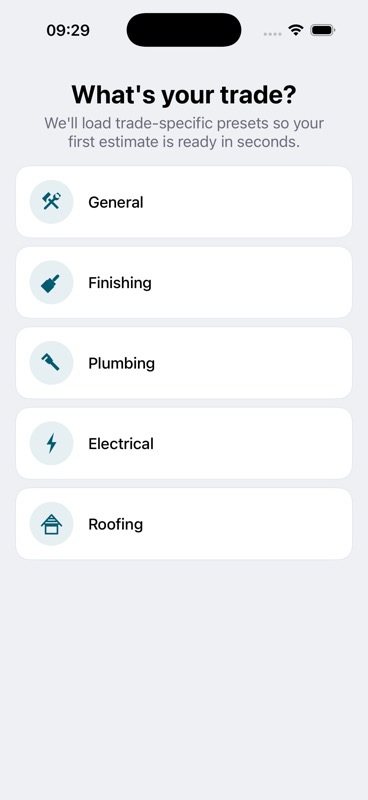
The first time you launch EstimateKit, it asks what trade you work in — General, Finishing, Plumbing, Electrical, or Roofing.
Your answer pre-loads your Personal Library with 150+ trade-specific presets — common tasks and materials with default prices, ready to drop into any estimate. There's no account to create and no internet connection required at any point.
02Creating a job
Tap the + button on the Projects tab to open the New Job form.
AI Quick Fill — the fastest way in. Tap the banner at the top of the form (or the mic icon next to Job title or Scope of Work) and build the whole job by voice instead of typing.
- Tap the mic and describe the job out loud: client, address, and the tasks involved.
- Tap the red button to stop recording and review the transcript.
- Tap AI Fill to parse it into structured fields, or Use Text to drop the raw transcript straight into Scope of Work.
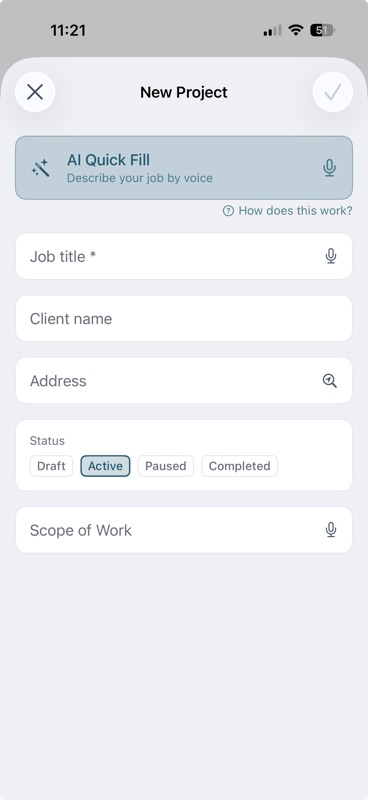
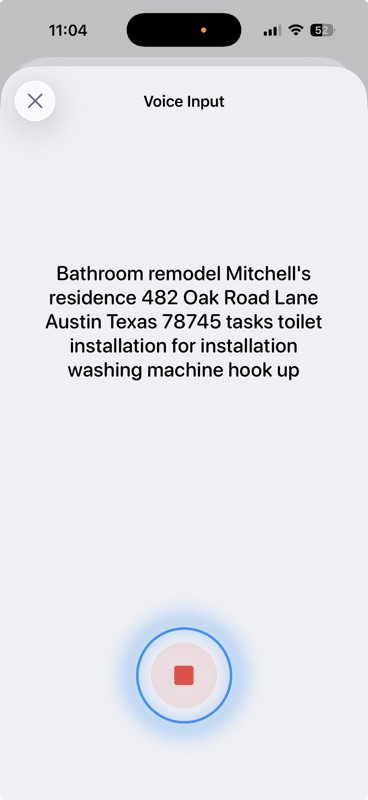
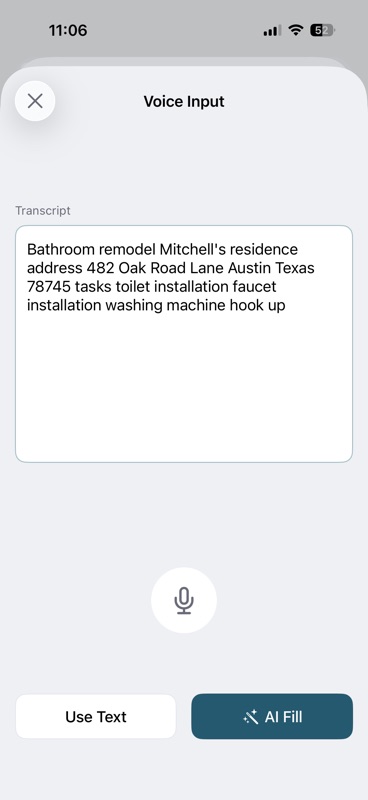
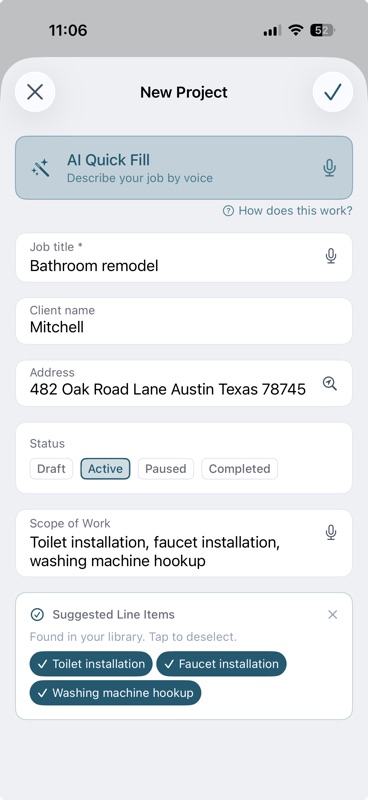
AI Fill parses the transcript into the Job title, Client name, Address, and Scope of Work fields, and matches any tasks you mentioned against your Personal Library — matches show up as a Suggested Line Items card you can tap to deselect before saving.
Privacy: Transcription and AI parsing both run on-device — no audio or job details leave your phone.
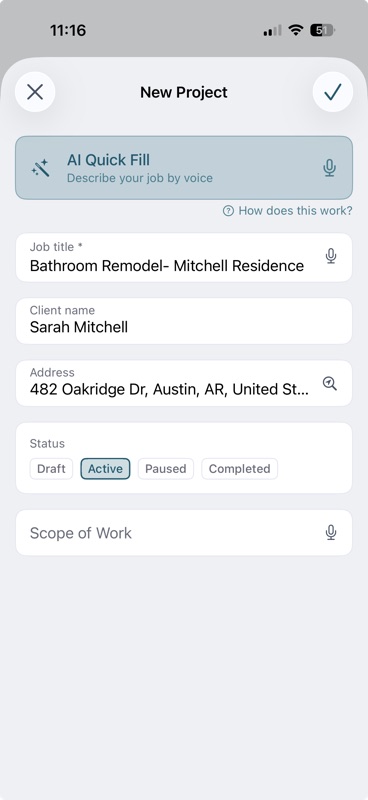
Prefer typing? Fill the fields in manually:
- Enter a Job title — the only required field.
- Add the Client name and Address (tap the search icon to look up and autofill a real address).
- Set the Status: Draft, Active, Paused, or Completed.
- Optionally add a Scope of Work note.
- Tap the checkmark to save.
03Your job list
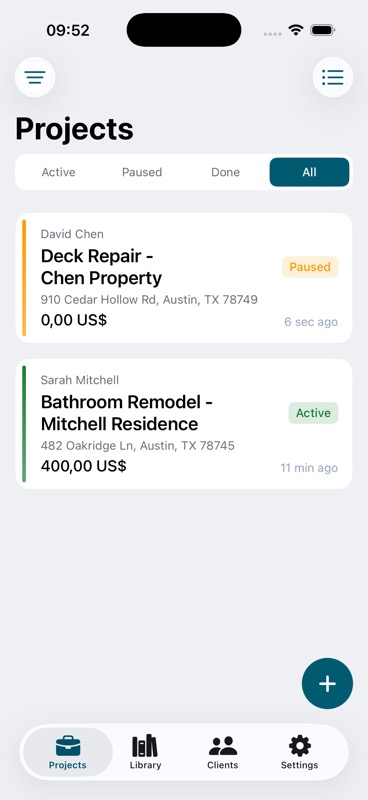
The Projects tab is your home screen. Each card shows the client, job title, address, running total, and status.
Use the filter tabs at the top to jump between Active, Paused, Done, and All jobs. Tap any card to open the full job detail.
04Estimates & progress tracking
Inside a job, the Work tab is your estimate. Tap the + button to add a task, then choose From Library (search your presets) or Custom (type your own).
- Work — labor or service tasks, e.g. installation, wiring, painting.
- Material — parts and supplies, with an optional material/labor cost breakdown.
- Receipt — a lump sum tied to a photographed receipt.
- Pass-through — government fees billed at cost, e.g. permits, licenses, inspection fees. No markup, and not taxed by default.
Tap a task's checkbox as you finish it. The job header updates in real time: a progress ring shows percent complete, and ESTIMATE vs BILLED totals track what's quoted against what's actually been invoiced.
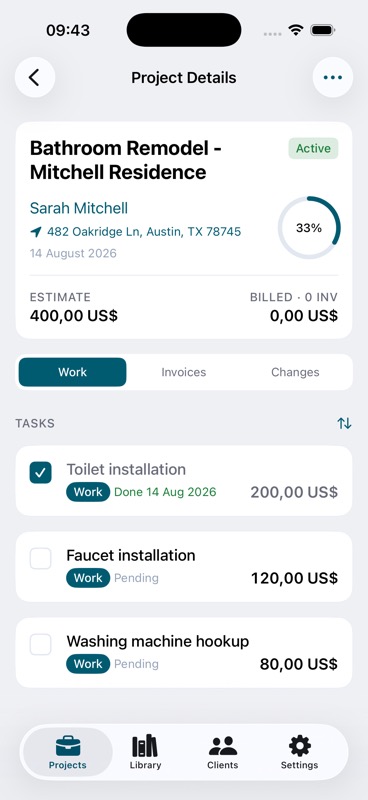
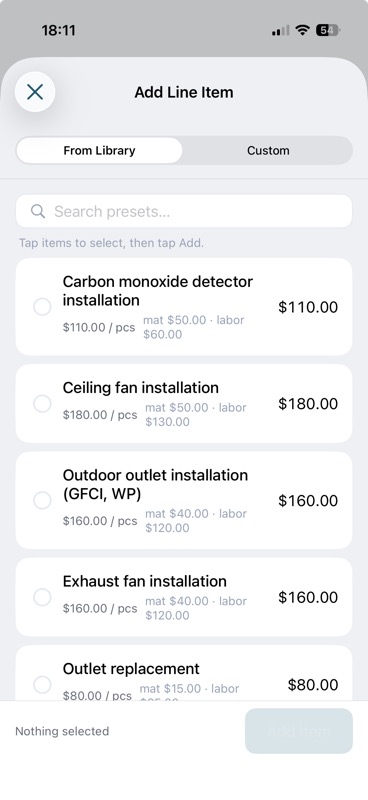
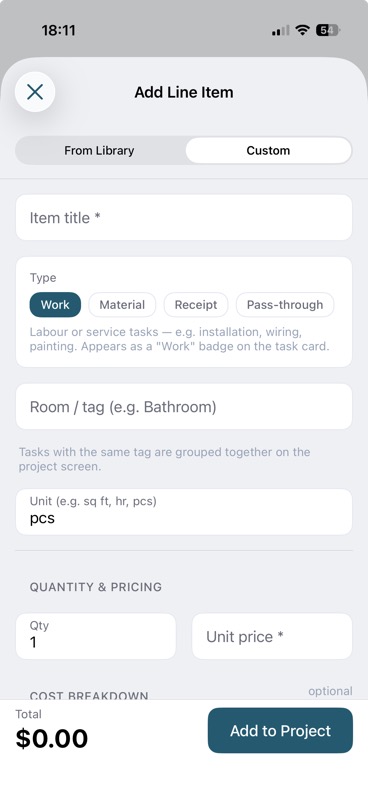
Tag by room: Add a room/tag (e.g. "Bathroom") to a task and same-tagged tasks group together on the job screen — handy for multi-room jobs.
05Personal library
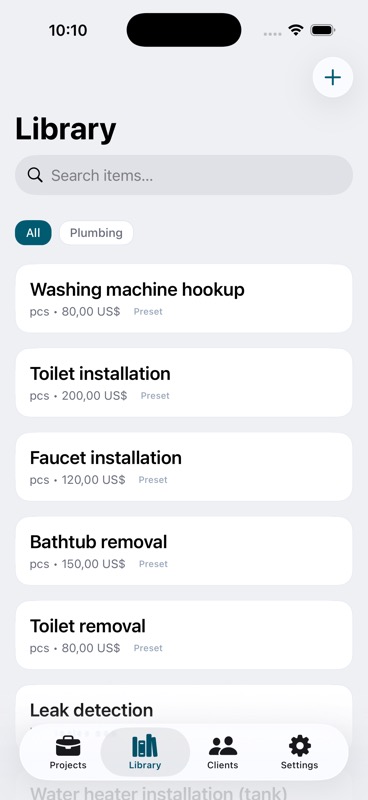
The Library tab holds your saved work items and materials with default prices, so you're not retyping "toilet installation — $200" on every job.
- Filter by All or your trade to browse presets.
- Tap + to add your own item with a name, unit (pcs, hr, sq ft…), and price.
- Items you use often naturally rise to the top when you're quick-adding a task.
06Job site photos
Clients dispute work they can't see. Photos tied to the specific task and date are your proof it happened.
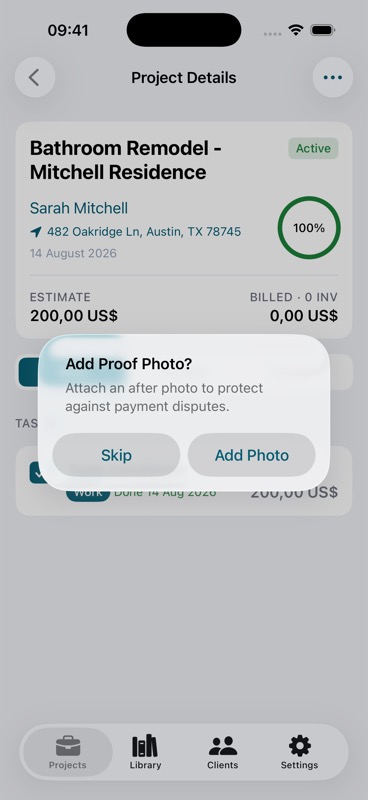
Whenever you mark a Work task complete, EstimateKit prompts you to attach a proof photo on the spot. You can also swipe left on any task at any time to add before/after photos manually — they're stored with the job and appear in the generated PDF when you choose to include them.
07Clients
Every time you enter a client name on a job, EstimateKit builds your client book automatically — no separate data entry.
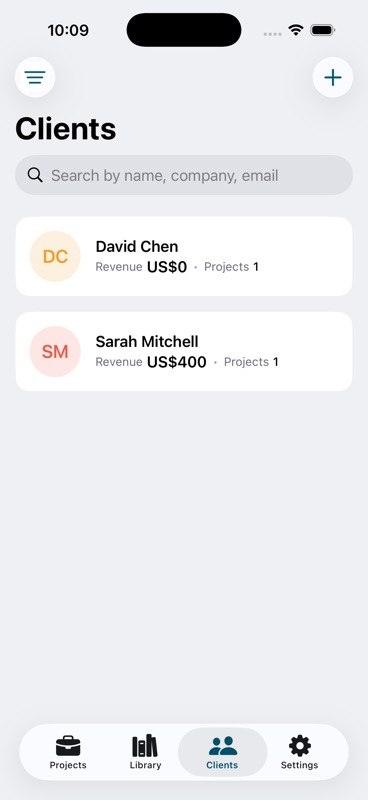
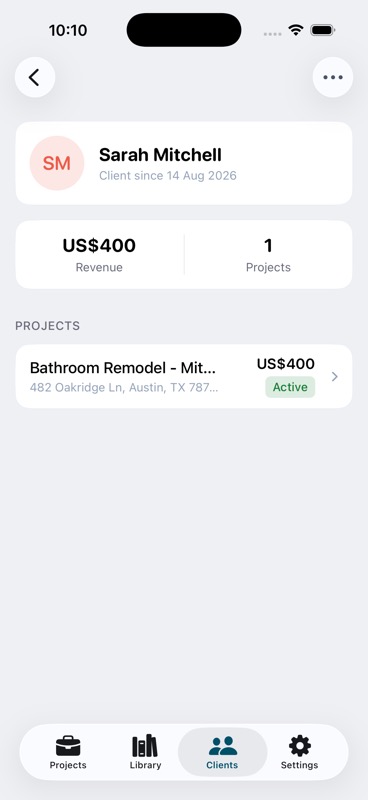
Open the Clients tab to see total revenue and job count per client, or tap into a client to see every job you've done for them in one place.
08Invoices — getting paid
Every job has two tabs: Work (the estimate) and Documents — one list for every Estimate, Invoice, and Change Order raised on that job. Filter by type with the chips at the top, or leave it on All. Each row shows its status and amount: Draft, Sent, Overdue, or Paid for invoices; Draft or Sent for estimates and change orders.
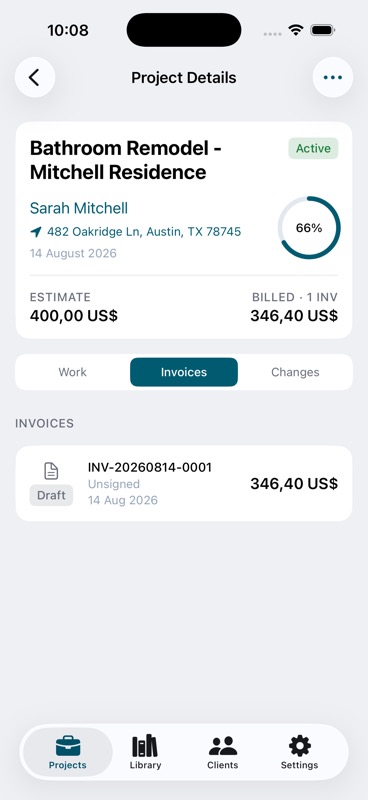
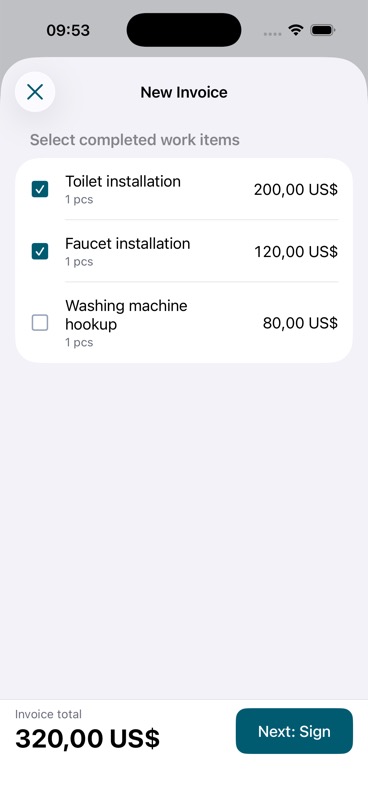
Tap + on the Documents tab to create a document: New Estimate, New Invoice, or New Change Order. New Invoice unlocks once at least one task is marked complete — you can't bill for work that hasn't happened yet.
For an invoice:
- Completed tasks are pre-checked; adjust which items to bill if needed.
- Review the subtotal, sales tax, and total.
- Tap Save & Generate PDF.
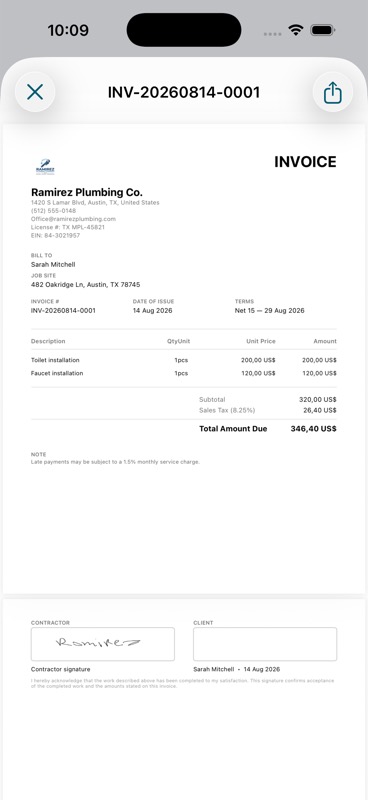
The finished PDF includes your business header, a full line-item breakdown, subtotal, sales tax, and total due. Tap Share to send it via iMessage, email, or AirDrop — right from the job site.
Client signatures live on Change Orders, not invoices: when you log a change order for extra work or a scope change, the client signs on-screen before you save it — that's your proof of approval for the added cost. Invoices skip that step since they're billing for work already agreed to.
09Business profile & invoice settings
Go to Settings → Business Profile to fill in the details that appear on every invoice PDF: business name, logo, address, phone, email, EIN, and license number.
The EIN field is off by default — flip Show EIN on documents if you want it printed on your PDFs. Everything else in Business Details always appears in the header.
Under Invoice Defaults, set your sales tax name and rate (calculated automatically on every invoice) and your default payment terms (Due on Receipt, Net 15, etc.).
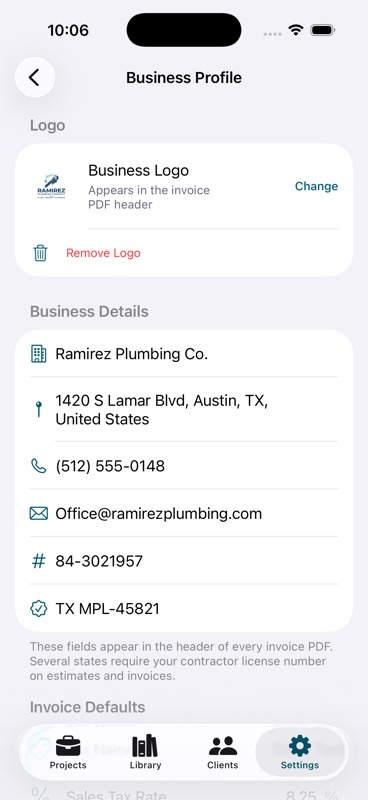
Why it matters: Several states require a license number on estimates and invoices, and a missing tax line is the fastest way for a client's accountant to bounce your invoice. The EIN toggle exists because a client never needs to see it — it defaults to hidden so you don't leak it by accident.
10Notifications
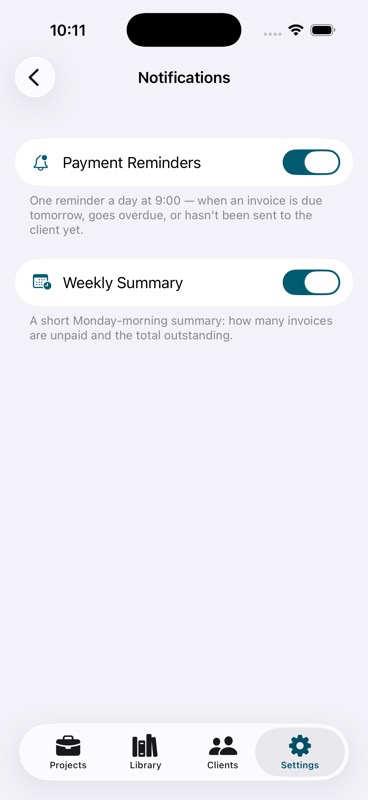
Turn on reminders under Settings → Notifications so unpaid work doesn't slip through the cracks.
- Payment Reminders — one alert a day at 9:00 AM when an invoice is due tomorrow, goes overdue, or still hasn't been sent to the client.
- Weekly Summary — a short Monday-morning digest: how many invoices are unpaid and the total outstanding.
11Free vs. Pro
EstimateKit is free to start. The only limit on the free plan is 3 created jobs total — after that, you'll be prompted to upgrade before creating a 4th.
Everything else — PDF invoices, client signatures, the personal library, and receipt items — is available on the free plan from day one. Pro removes the job cap entirely, with Weekly (3-day free trial), Monthly, or Yearly billing.
12Need help?
For support, feature requests, or questions about using EstimateKit:
- Email us at support@nvklabs.com
This document was last updated on August 14, 2026.